

FFFS Kisan App 2026 — the Framework for Fertilizer Sale mobile application — is India’s newest digital system letting farmers pre-book subsidised fertilizer, generate a QR token pass, and collect bags from authorised retailers without paperwork or queue. Jointly developed by the Ministry of Chemicals and Fertilisers and the Ministry of Agriculture and Farmers Welfare, the pilot already covers 56 districts across 23 states (as informed to Rajya Sabha on 4 August 2026), making it the fastest-expanding agri-digital rollout of 2026. This guide is for farmers, fertilizer dealers, and rural entrepreneurs who want a clear, step-by-step walkthrough of every screen — from downloading the app to collecting the fertilizer bag at the retailer.

The FFFS Kisan App lets Indian farmers book subsidised fertilizer digitally in 14 steps: download the app, verify identity via Aadhaar OTP or face authentication, link land records from the Farmer Registry, select crop and GFR-recommended fertilizer quantity, choose a retailer, and receive a QR token pass valid for 2 days to collect reserved bags — all without standing in a queue.
- Full Name: Framework for Fertilizer Sale (FFFS) Kisan App
- Developed By: Ministry of Chemicals & Fertilisers + Ministry of Agriculture & Farmers Welfare
- Pilot Coverage (Aug 2026): 56 districts across 23 states
- Platform: Android (Google Play Store)
- Identity Verification: Aadhaar OTP or Face Authentication (AadhaarFaceRD)
- Land Data Source: AgriStack / Farmer Registry (10.28 crore IDs integrated)
- Fertilizers Covered: Urea (Neem Coated, Sulphur Coated), DAP, NPK, NPKS, MOP, SSP
- Token Type: QR Code — valid for 2 days from booking
- Farmer Subsidy Protected: Urea at Rs.276/bag, DAP at Rs.1,350/bag (NBS Kharif 2026)
- Backend System: Integrated Fertilizer Management System (iFMS)
- Languages Supported: Hindi, English, Gujarati, Marathi, Telugu, Assamese, Bengali, Kannada
- Total Steps to Complete Booking: 14 steps
Table of Contents
What Is the FFFS Kisan App and Why Was It Launched in 2026?
The FFFS Kisan App — short for Framework for Fertilizer Sale — is a mobile application through which farmers pre-book subsidised fertilizer before physically visiting a retailer. Before FFFS existed, farmers had to stand in queues at fertilizer shops without any guarantee of stock availability, and duplicate or diverted purchases of subsidised fertilizer were difficult to detect. The FFFS solves all three problems simultaneously by digitising identity, land data, crop-linked demand, and transaction records into a single connected flow.
India spent Rs.41,533.81 crore on P&K fertilizer subsidy for Kharif 2026 alone, and the total fertilizer subsidy budget — including urea — exceeds Rs.1.65 lakh crore annually, reaching approximately 8.4 crore farmers through 2.87 lakh retailers. At this scale, even a 5–10% leakage represents thousands of crore in losses. FFFS closes that gap by making every bag traceable: each sale is linked to a verified Farmer ID from the AgriStack Farmer Registry, a georeferenced land plot, a declared crop, and an Aadhaar-biometric confirmation at the point of collection.

The system feeds into the Integrated Fertilizer Management System (iFMS), which already tracks dispatches, allocations, stock positions, and retailer-level sale data in real time. The FFFS adds a mobile booking and verification layer before the existing iFMS point-of-sale transaction — strengthening the subsidy chain without replacing the existing dealer infrastructure. As of August 2026, the pilot covers 56 districts across 23 states, up from 40 districts across 20 states in late July 2026, confirming rapid expansion driven by strong farmer uptake.
Who Should Use the FFFS Kisan App in 2026?
- 🌾 Small and marginal farmers in pilot districts who buy Urea, DAP, NPK, MOP, or SSP at subsidised prices and want to avoid queues and stock-unavailability at retailers
- 👨🌾 Owner-cultivators with land in the Farmer Registry — the app pulls your land records automatically if your Aadhaar is already linked to AgriStack or the revenue records database
- 👩🌾 Women farmers and legal heirs — the app explicitly supports “Legal Heir” and “owner, sale/record not updated” land categories, ensuring they are not excluded
- 🏘️ Tenant and forest-patta farmers — non-owners can add land under categories such as Forest Right Patta, Registered Tenant, or Community Land to access fertilizer booking
- 🧑💼 Authorised representatives of farmers — a family member or farm manager can collect the fertilizer on behalf of the farmer using the receiver-details feature in Step 12
- 🏪 Licensed fertilizer retailers and PACS — dealers benefit from pre-verified orders with QR codes that reduce counter disputes, fraudulent purchases, and manual record-keeping
- 📲 Farmers already registered under PM-KISAN or AgriStack — your Farmer Registry data syncs automatically, making the FFFS setup process significantly faster
- 🌍 Farmers in the 23 pilot states including Maharashtra, Haryana, Bihar, Andhra Pradesh, Telangana, Gujarat, and other AgriStack-integrated states where land records are already digitalised
How Does the FFFS Process Work?
The basic process involves farmer identification, fertilizer selection, quantity entry, verification, sale confirmation, and transaction recording.
Generally, the farmer provides the required details to the authorized fertilizer seller. The information is entered into the FFFS system, the farmer is verified, and the required fertilizer and quantity are selected. After completing the necessary verification and payment process, the sale is confirmed and the transaction is recorded digitally.
The exact options and screens may vary depending on the version of the application and government implementation.
Purpose of This Guide
In this blog post, we will explain the FFFS Kisan App process step by step, from opening the application and entering farmer details to selecting fertilizer and completing the sale.
The objective is to provide a simple, practical guide so that fertilizer dealers, sellers, and other users can understand the FFFS process easily and complete fertilizer sales correctly.
Keep 3 things ready before opening the FFFS app: (1) Your Aadhaar card and the mobile number registered with Aadhaar (for OTP), (2) Your land survey number (Khasra/Plot/Survey No.) and village name, (3) The name of the crop you plan to grow this season. Having these ready will let you complete the entire 14-step booking in under 15 minutes without interruption.
Step 1: Download the FFFS Kisan App
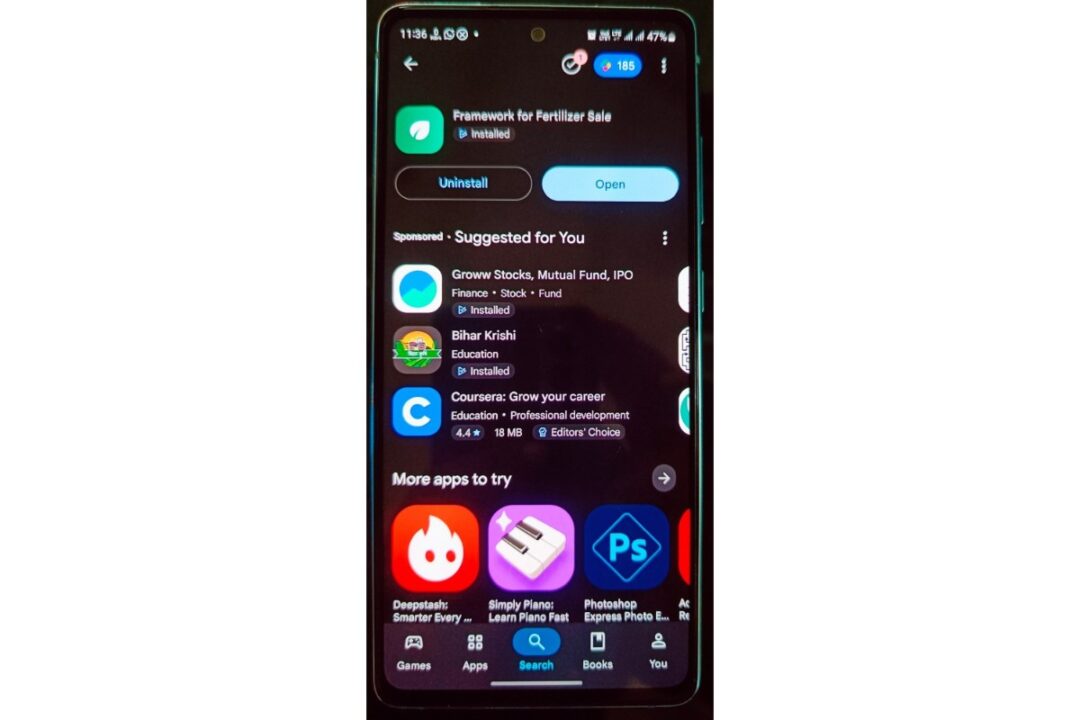
First, visit the Google Play Store and search for “Framework for Fertilizer Sale”. Alternatively, you can use the official download link below.
Once the app page opens, tap Install to download and install the FFFS Kisan App on your Android smartphone.
Step 2: Search and Open the FFFS App
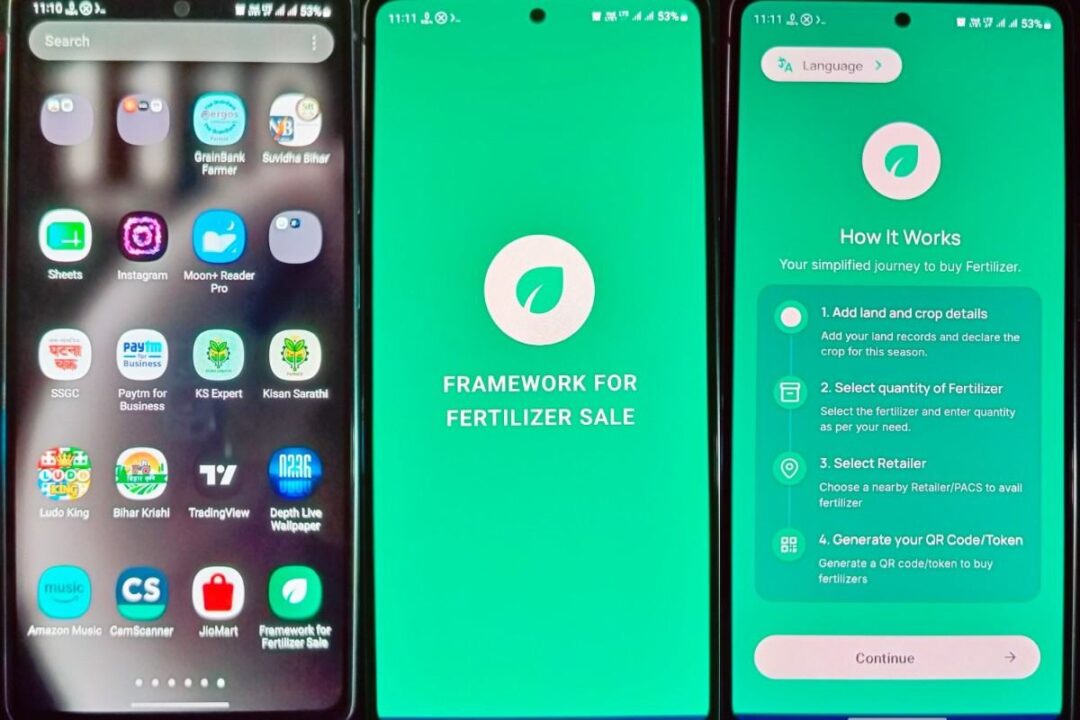
After installing the app, open your phone’s app drawer and find “Framework for Fertilizer Sale”. Tap the app icon to launch it.
The app will first display the Framework for Fertilizer Sale welcome screen. Wait for the app to load and proceed to the next screen.
Step 3: Select Your Preferred Language
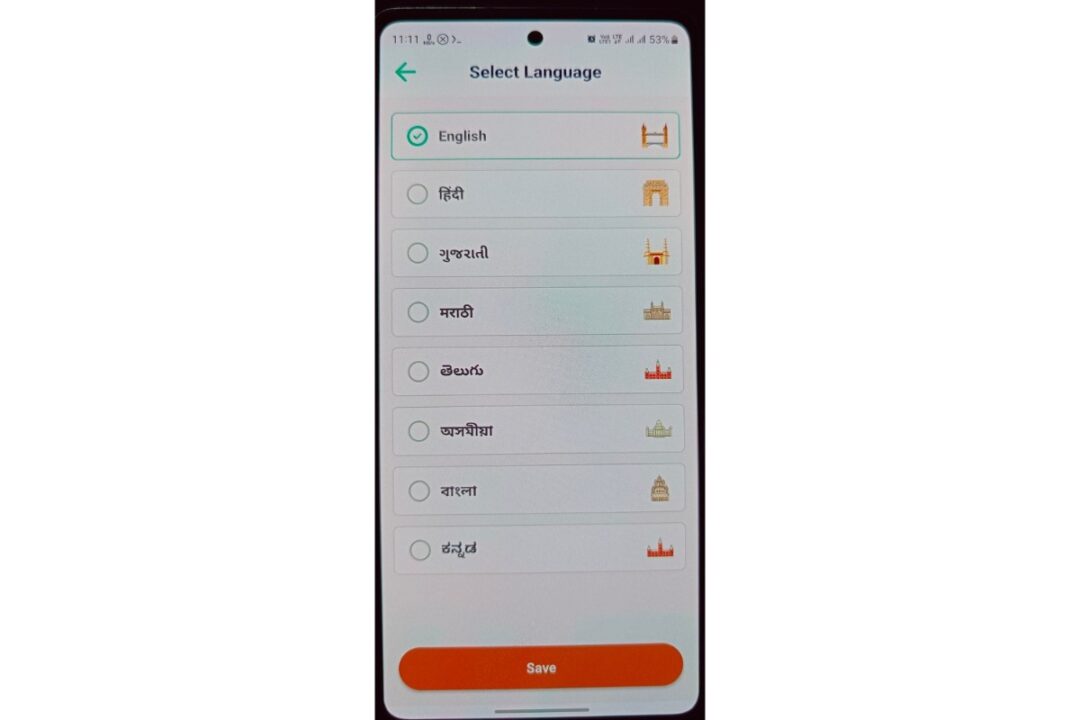
On the Select Language screen, choose the language you prefer from the available options, such as English, Hindi, Gujarati, Marathi, Telugu, Assamese, Bengali, or Kannada.
After selecting your preferred language, tap “Save” to continue.
Step 4: (a) Login and Verify Your Identity
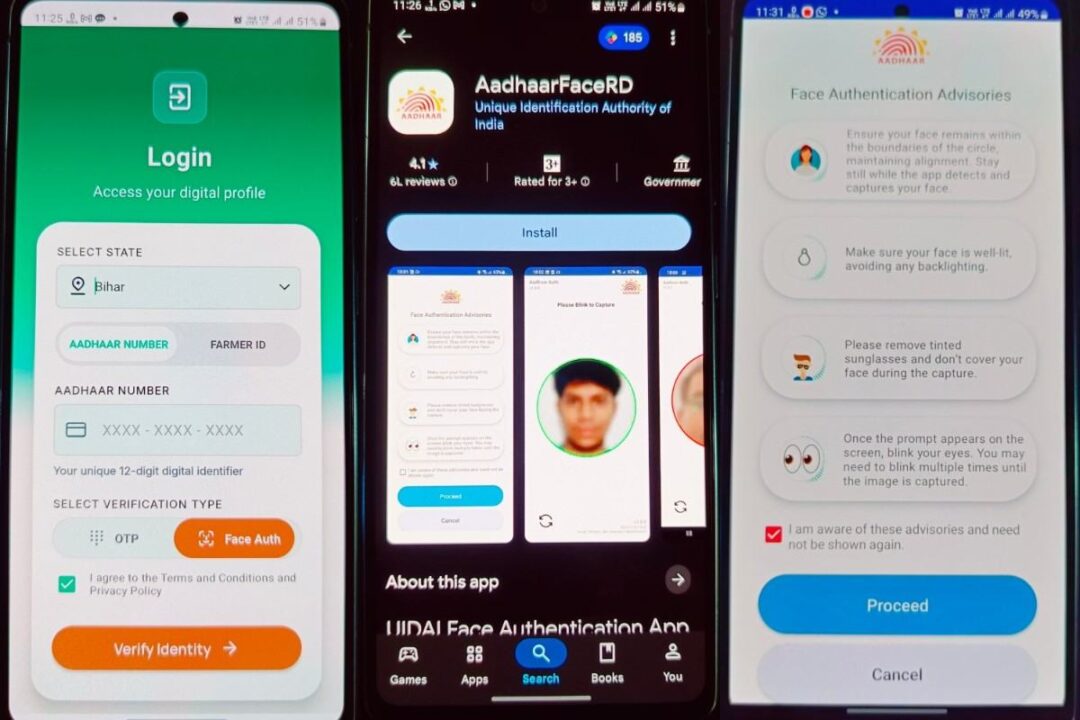
After selecting the language, the Login screen will appear. Follow these steps:
- Select your State from the dropdown menu.
- Choose either Aadhaar Number or Farmer ID for identification.
- Enter your 12-digit Aadhaar number or the required Farmer ID.
- Select your preferred verification method — OTP or Face Authentication.
- Agree to the Terms & Conditions and Privacy Policy by ticking the checkbox.
- Tap “Verify Identity” to proceed with login and identity verification.
Accept Fertilizer Sales Consent
After completing the identity verification process, a Fertilizer Sales Consent window may appear.
- Read the consent details carefully.
- Tick the Terms & Conditions / consent checkbox to provide your agreement.
- Tap “Submit” to confirm your consent.
- After submission, continue with the identity verification process in the FFFS app.
Step 4(b): Set Up Face Authentication If You have not AADHAR Registerd Mobile No or Number is not active
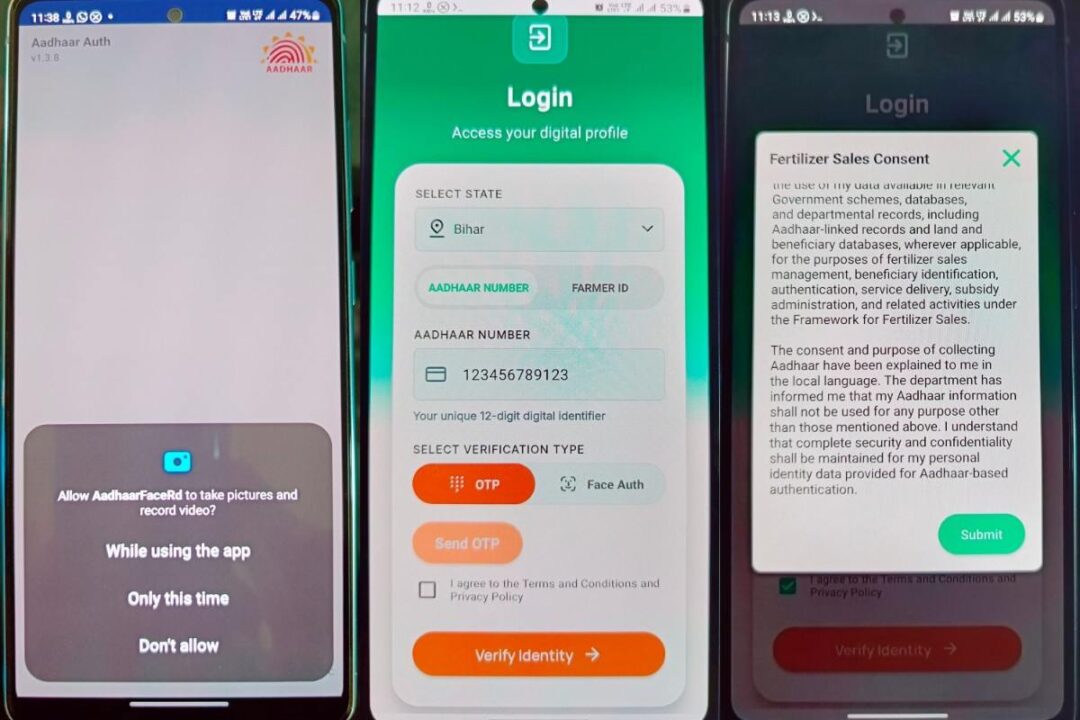
If you choose Face Auth for identity verification, you need to install the AadhaarFaceRD application, which is used for Aadhaar face authentication.
- Tap “Face Auth” on the FFFS Login screen.
- If AadhaarFaceRD is not installed, install it from the Google Play Store.
- Open the AadhaarFaceRD app when prompted and allow camera access.
- Read the Face Authentication Advisories and tap “Proceed”.
- Keep your face properly inside the circle, ensure good lighting, remove tinted sunglasses, and keep your face uncovered .
- Follow the on-screen instruction to blink your eyes for face capture Blink your eye is compulsory.
- After successful face authentication, return to the FFFS app and continue with “Verify Identity.”
Step 5: Check and Add Land Details
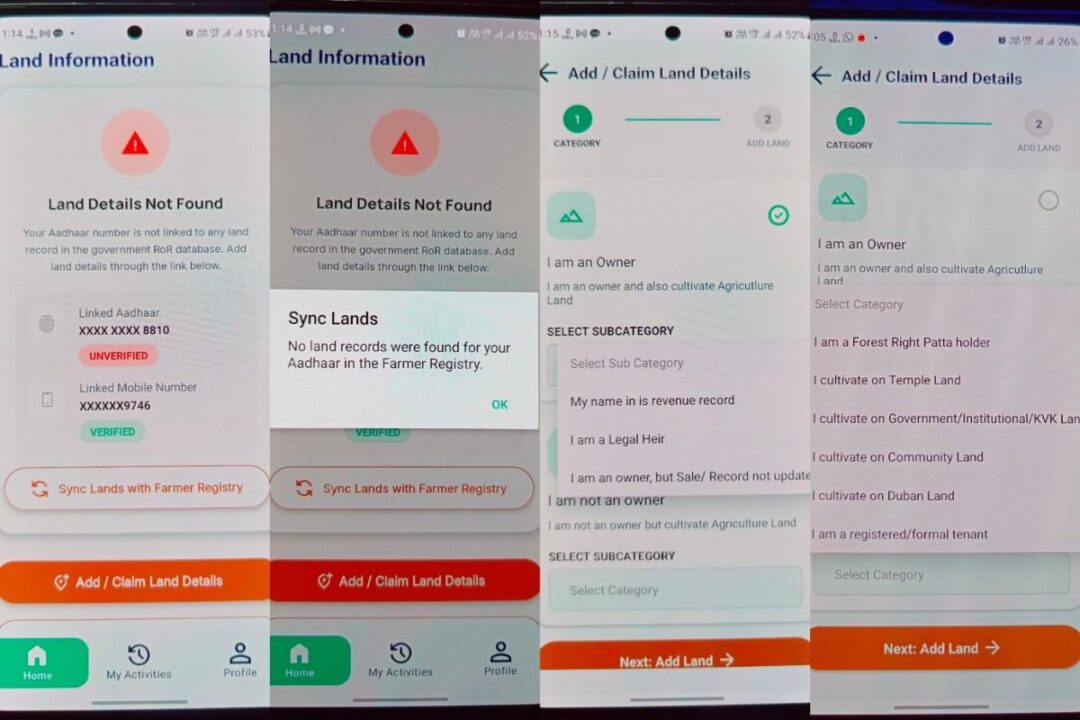
After successful login, the app will open the Land Information screen.
- The app will check whether your Aadhaar is linked to any land record in the government RoR/Farmer Registry database.
- If land records are found, they can be synced through “Sync Lands with Farmer Registry.”
- If no records are found, a message such as “Land Details Not Found” will appear.
- Tap “OK” and then select “Add / Claim Land Details” to add or claim your land information.
- If you already have land records in the Farmer Registry, use “Sync Lands with Farmer Registry” to fetch them.
This land information is required for the next steps of the fertilizer purchase process.
Step 5(a): Select Land Ownership Category
On the “Add / Claim Land Details” screen, select the category that matches your land ownership and cultivation status.
Under “I am an Owner”, you can choose:
- My name is in revenue record
- I am a Legal Heir
- I am an owner, but Sale/Record not updated
If you are not the landowner but cultivate agricultural land, select the appropriate “I am not an owner” option.
After selecting the correct category and subcategory, tap “Next: Add Land” to continue.
Step 5(b): Select the Appropriate Land Category
If you do not fall under the regular land-owner category, select the option that best describes the type of land you cultivate.
Available options include:
- Forest Right Patta holder
- Cultivate on Temple Land
- Cultivate on Government/Institutional/KVK Land
- Cultivate on Community Land
- Cultivate on Duban Land
- Registered/Formal Tenant
Select Patta Holder (Theka/Batiya) Farmer.
Select the correct category according to your actual land/cultivation status. Then tap “Next: Add Land” to proceed to the next step.
Step 6: Enter Land Location Details
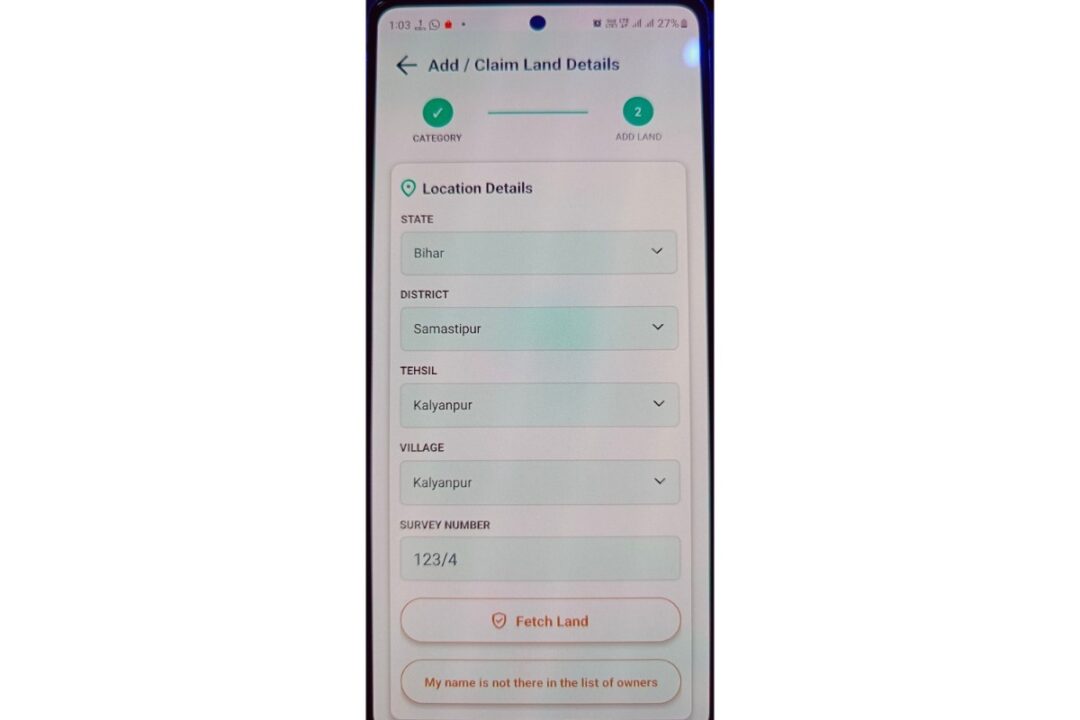
In the Add / Claim Land Details section, enter the location and land details accurately:
- Select the State.
- Select the District.
- Select the Tehsil.
- Select the Village where the land is located.
- Enter the Survey Number of the land.
- Tap “Fetch Land” to retrieve the available land records.
If your name does not appear in the list of landowners, use “My name is not there in the list of owners” and follow the applicable process.
Step 7: Enter Land Details and Submit
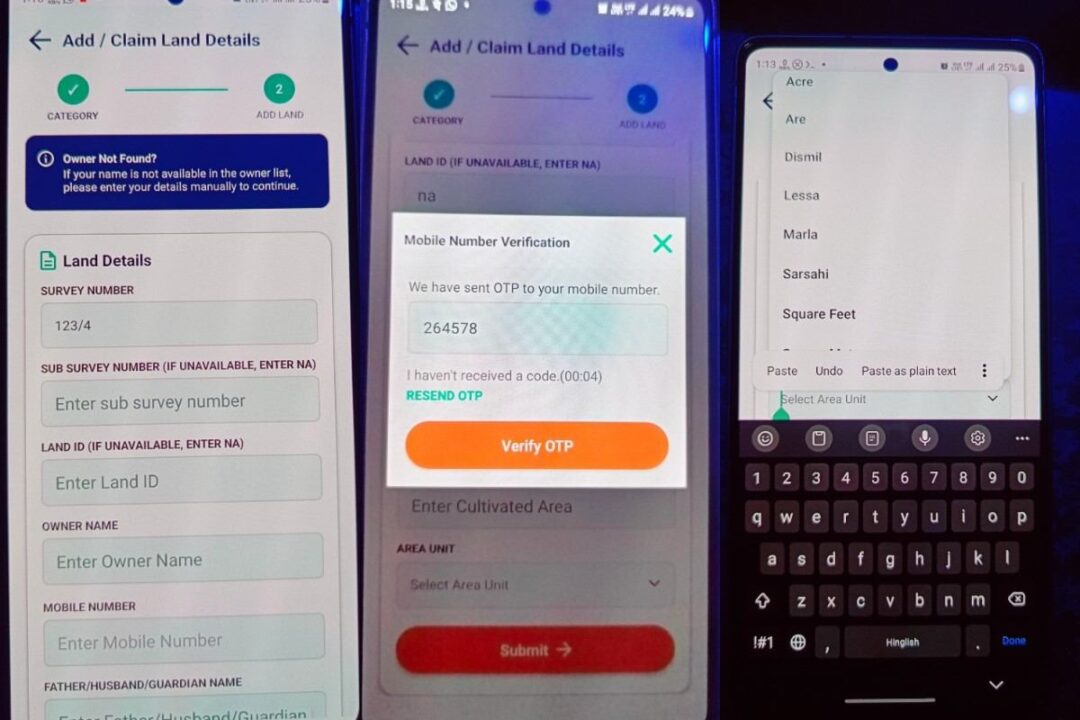
If the land record is not available in the owner list, the app allows you to enter the land details manually.
Fill in the required information carefully:
- Enter the Survey Number.
- Enter the Sub-Survey Number. If unavailable, enter “NA”.
- Enter the Land ID. If unavailable, enter “NA”.
- Enter the Owner Name.
- Enter the Mobile Number and complete the OTP verification when prompted.
- Enter the Father/Husband/Guardian Name.
- Enter the Cultivated Area.
- Select the appropriate Area Unit such as Acre, Are, Dismil, Lessa, Marla, Sarsahi, or Square Feet.
- Review all the information carefully.
- Accept the Applicant Declaration, confirming that the information provided is correct.
- Tap “Submit”.
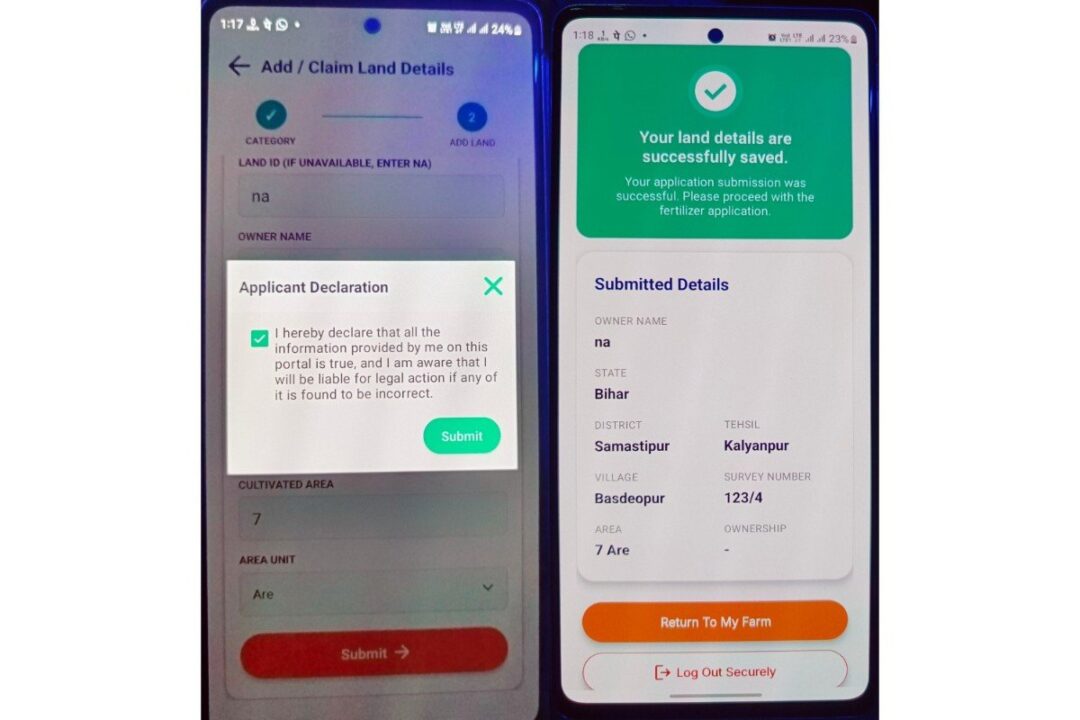
After successful submission, the app will display a confirmation that your land details have been successfully saved. You can then return to My Farm and proceed with the fertilizer application.
Important: Enter your actual and correct information wherever available. Use “NA” only for fields where the app specifically allows it and the relevant information is genuinely unavailable.
Step 8: Select the Land and Crop to Be Grown
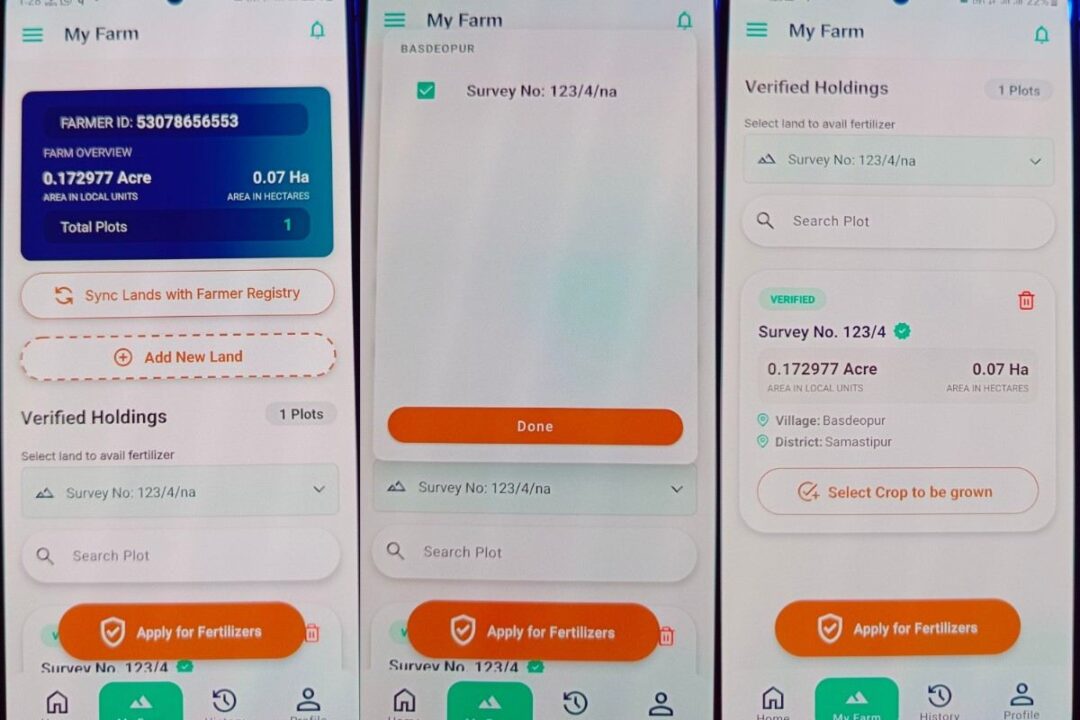
After your land details are successfully added and verified, you will see them under “Verified Holdings” in the My Farm section.
- Select the required land/plot from the list.
- Check the displayed land details, including Survey Number, area, village, and district.
- Tap “Select Crop to be grown”.
- Choose the crop you are going to cultivate on the selected land.
- Confirm/save the crop selection.
- Once the crop is selected, tap “Apply for Fertilizers” to proceed with the fertilizer application.
Step 9: Select the Crop to Be Grown
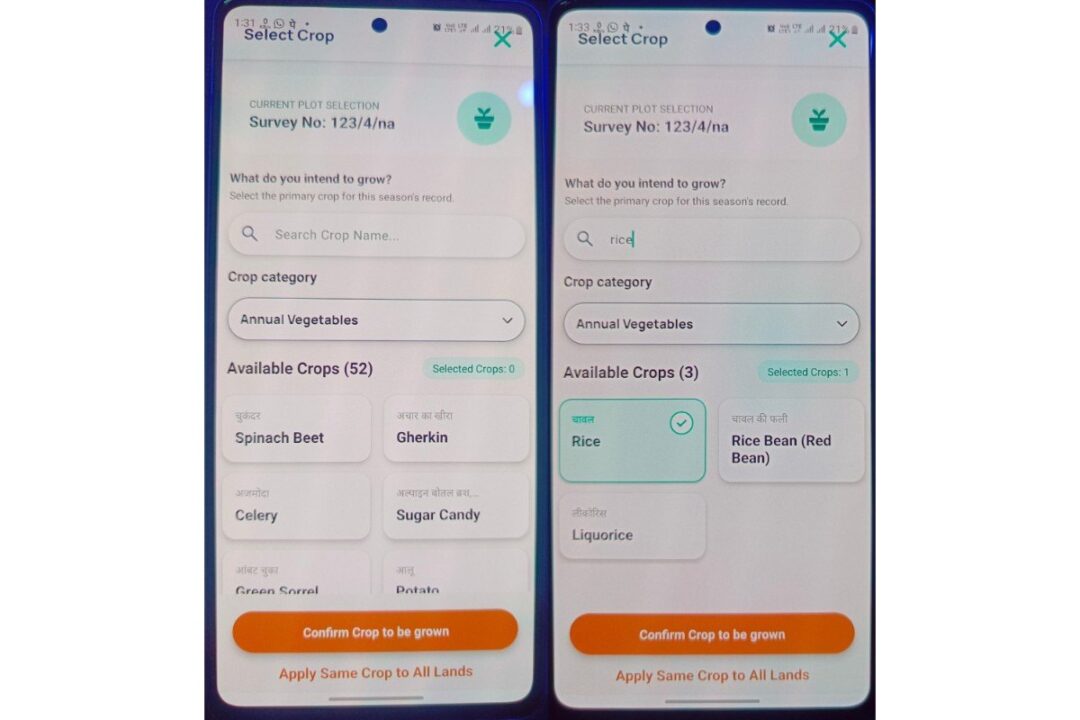
On the Select Crop screen, choose the primary crop you intend to grow on the selected land for the current season.
- Use the Search Crop Name box to quickly find your crop.
- Enter the crop name, such as “Rice”.
- Select the correct crop from the available results. The selected crop will be marked with a ✓.
- Tap “Confirm Crop to be grown” to save your selection.
- If you have multiple plots and want to use the same crop for all of them, you can select “Apply Same Crop to All Lands.”
Step 10: Review Fertilizer Recommendation
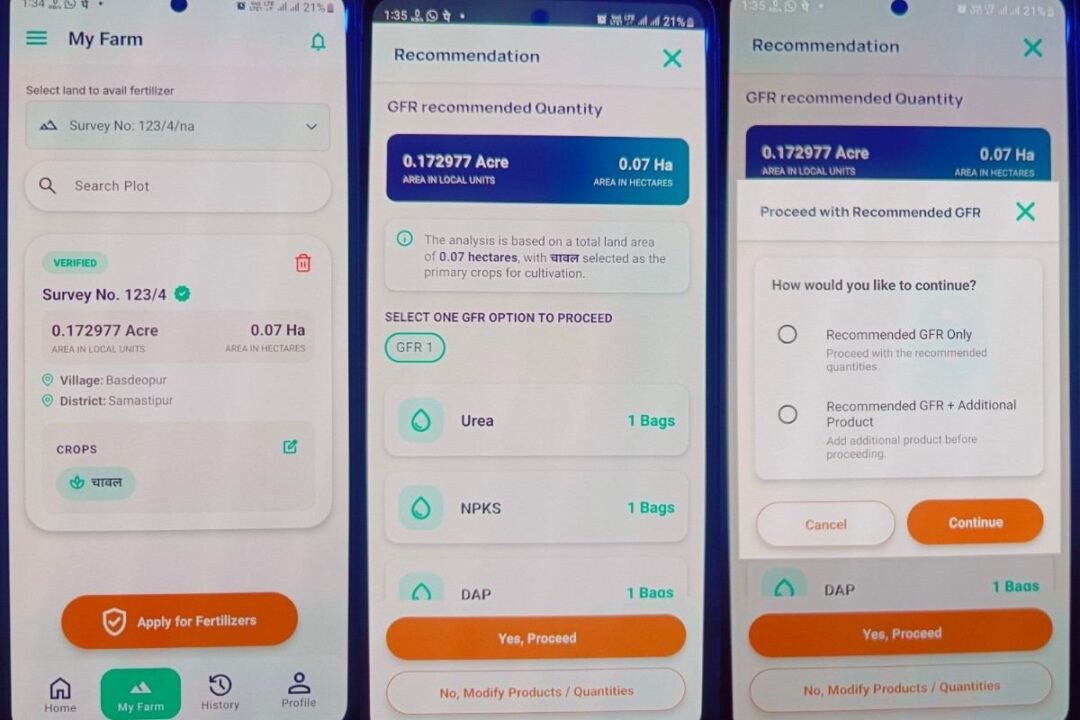
After selecting the crop, the app will show the GFR (recommended fertilizer quantity) based on your land area and selected crop.
- Check the recommended fertilizer quantities shown on the screen, such as Urea, NPKS, DAP, etc.
- Select “GFR 1” or the available recommended option.
- Tap “Yes, Proceed”.
- A confirmation window will appear asking how you want to continue:
- Recommended GFR Only – proceed with only the recommended fertilizers and quantities.
- Recommended GFR + Additional Product – add another fertilizer/product before proceeding.
- Select the option you need and tap “Continue”.
- If you want to change the recommended products or quantities, choose “No, Modify Products / Quantities.”
Tip: If you don’t need any additional product, select “Recommended GFR Only” → Continue.
Step 11: Select Fertilizer Product and Quantity
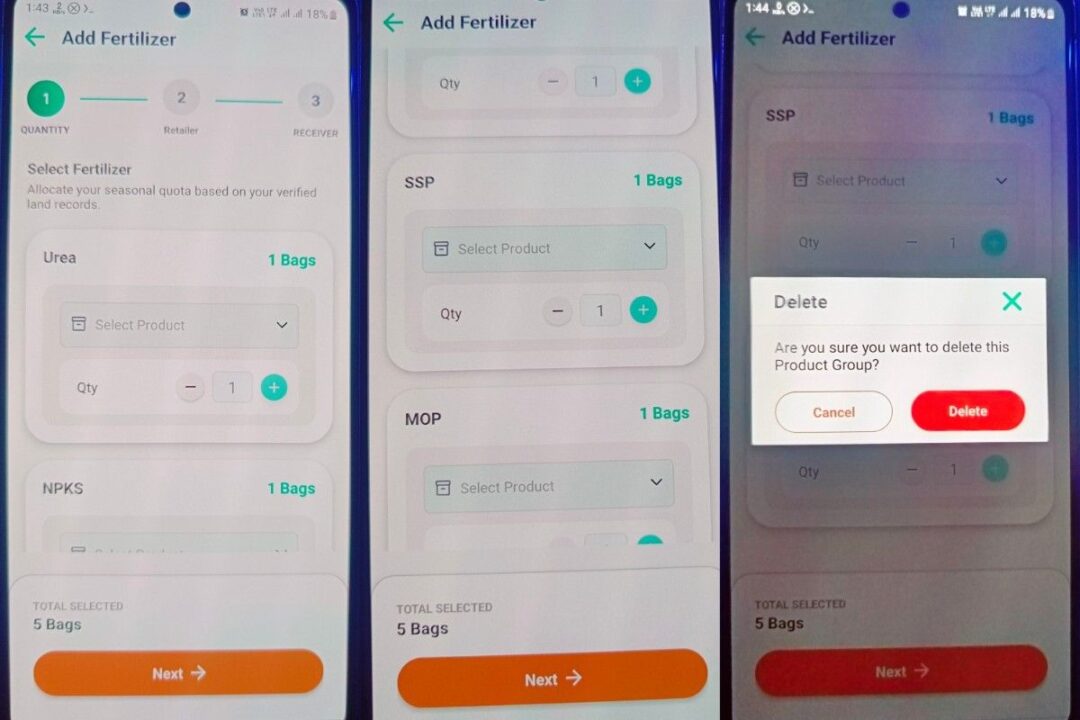
On the Add Fertilizer screen, you need to select the actual fertilizer product against the recommended fertilizer category.
- Under Urea, tap Select Product.
- Choose the available product, such as:
- Neem Coated Urea (45 Kg)
- Sulphur Coated Urea (40 Kg)
- Check the Qty. Use the + / − buttons to increase or decrease the quantity as required.
- Repeat the same process for other recommended fertilizer groups such as NPKS, DAP, SSP, MOP, etc.
- If a fertilizer group is not required, you can remove that product group using the -/ (- button) to Delete option after confirmation.
- The Total Selected section at the bottom shows the total number of bags selected.
- After selecting the required products and quantities, tap Next → to proceed to Retailer selection (Step 2).
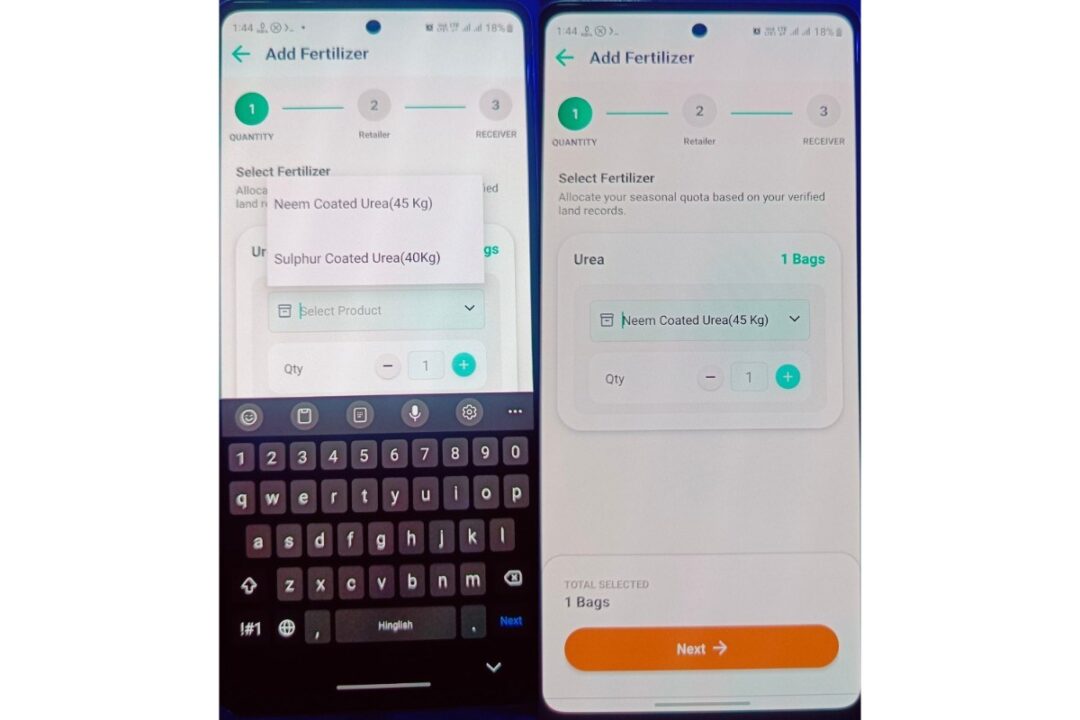
Important: Select the fertilizer product and quantity according to the recommendation/requirement.
Step 12: Enter Receiver Details
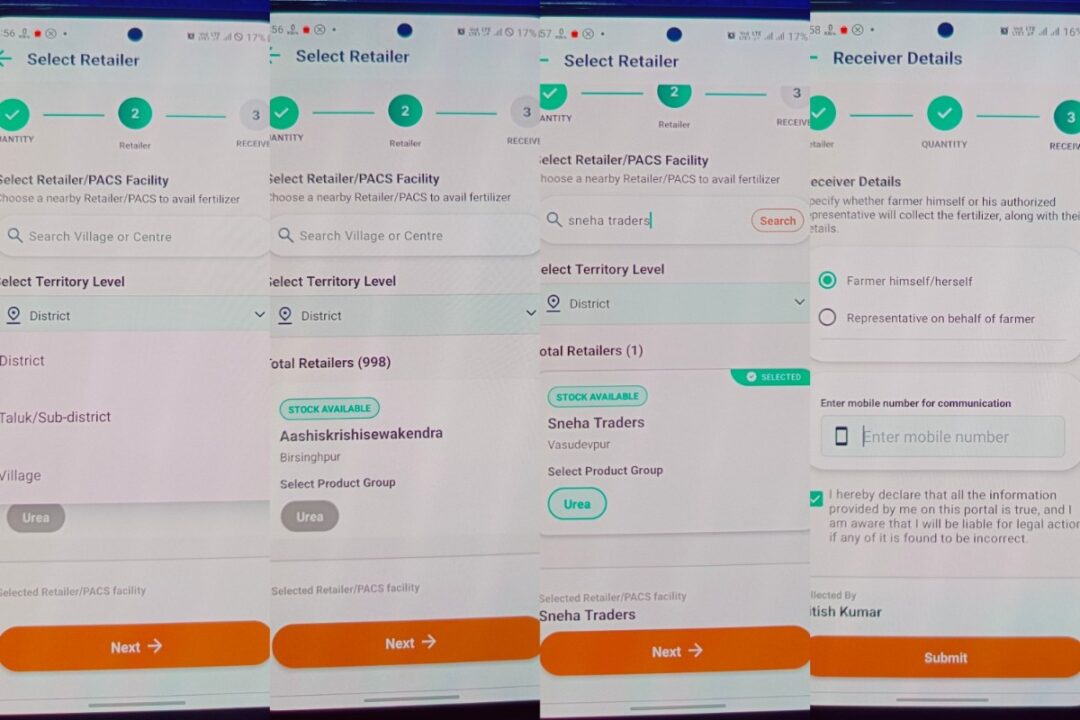
After selecting the retailer, you will reach the Receiver Details screen.
- Select who will collect the fertilizer:
- Farmer himself/herself – if the farmer will collect it personally.
- Representative on behalf of farmer – if an authorized person will collect it.
- Enter the mobile number for communication in the given field.
- Read the declaration carefully and tick the checkbox confirming that the information provided is correct.
- Check the Collected By name shown at the bottom.
- Once all details are correct, tap Submit.
- This completes the receiver-details stage and submits the fertilizer request.
Step 13: QR / Token Pass
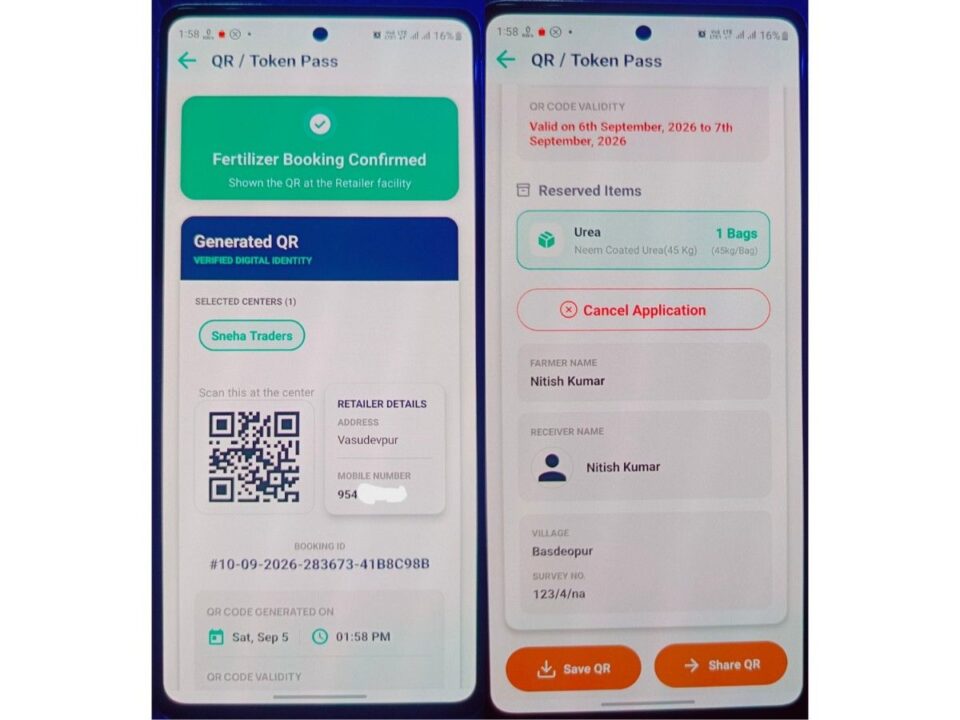
After submitting the fertilizer request, the QR / Token Pass screen will appear.
- The screen will show “Fertilizer Booking Confirmed”, confirming that your fertilizer booking has been successfully completed.
- A QR code will be generated for the selected retailer/PACS facility.
- Visit the selected retailer and show the QR code there to collect the fertilizer.
- Check the retailer details, including the retailer name, address and contact number.
- Note your Booking ID for future reference.
- Check the QR Code Validity dates. In this example, the QR is valid from 6 September 2026 to 7 September 2026.
- Under Reserved Items, verify the fertilizer and quantity. Here, 1 bag of Neem Coated Urea (45 kg) is reserved.
- You can use Save QR to save the QR code or Share QR to send it to someone if required.
- Do not cancel the application unless you no longer want to collect the reserved fertilizer.
Step 14: Explore More Features of the Application
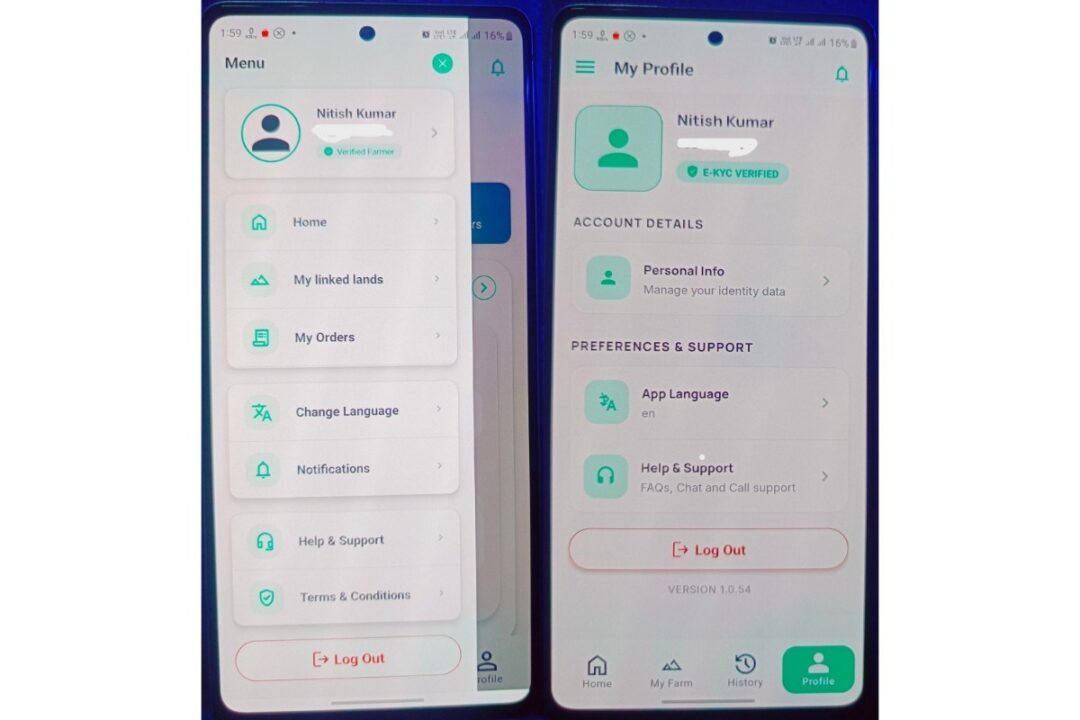
Apart from linking land and applying for fertilizers, the application provides several other useful features:
- My Linked Lands: View and manage all your verified/linked agricultural land records.
- My Orders: Check your fertilizer orders, booking details and order status.
- Profile: View your farmer profile and e-KYC verification status.
- Personal Info: Manage your personal/identity information.
- Change/App Language: Change the language used in the application according to your preference.
- Notifications: View important alerts and updates related to your account and fertilizer applications.
- History: Check your previous activities and fertilizer transactions.
- Help & Support: Access FAQs, chat and call support if you face any problem.
- Terms & Conditions: Read the application’s terms and conditions.
In short: The app allows farmers to manage land records, crops, fertilizer applications, orders, profile information, notifications and support from one place.
FFFS Kisan App vs Traditional Fertilizer Buying — 2026 Comparison
The FFFS Kisan App is a significant improvement over traditional fertilizer purchase for every farmer in a pilot district. The ability to pre-reserve stock, avoid queues, and have a permanent digital record of purchases is especially valuable during the peak Kharif and Rabi sowing seasons when fertilizer demand spikes and queues at dealers stretch for hours. Farmers in pilot districts should adopt the FFFS app immediately — it protects subsidy access, simplifies verification, and keeps all purchase records accessible from a single app.
Advantages and Disadvantages of the FFFS Kisan App 2026
Advantages:
- ✅ Eliminates queues — stock is reserved digitally before the farmer travels to the retailer, saving travel time and ensuring guaranteed availability
- ✅ Prevents fake and duplicate purchases — each booking is tied to a verified Aadhaar identity, land record, and crop declaration, making fraudulent multi-booking extremely difficult
- ✅ GFR-linked quantity cap — prevents hoarding and diversion of subsidised fertilizer by limiting booking to agronomically justified quantities for the declared crop and land area
- ✅ Multi-language access — 8 language options make the app accessible to farmers across diverse linguistic regions of India without literacy barriers in Hindi or English
- ✅ Digital transaction record — every purchase is permanently stored in iFMS, providing farmers with a formal proof of subsidised purchase that can be used for insurance claims, bank applications, and government scheme verification
- ✅ Representative collection feature — elderly, sick, or physically unable farmers can send an authorised representative to collect fertilizer bags without losing their reservation
Disadvantages / Challenges:
- ⚠️ Android only — iOS / iPhone users cannot access the FFFS app; farmers without smartphones cannot use the digital system at all
- ⚠️ OTP dependency — farmers whose Aadhaar-registered mobile number is inactive or shared may face OTP delivery failures (though Face Auth is an alternative)
- ⚠️ Land record gaps — farmers whose land is not in the government’s digital RoR/Farmer Registry database must manually submit land details, which adds steps and potential delays, particularly for tenant and informal cultivators
- ⚠️ Pilot-only coverage — as of September 2026, FFFS is operational in only 56 districts; the vast majority of India’s 640+ districts still use traditional paper-based purchase systems
Important Links — FFFS Kisan App and Related Resources
| Resource | Link |
|---|---|
| FFFS App — Google Play Store | Search “Framework for Fertilizer Sale” on Play Store |
| Department of Fertilizers (Official) | fert.nic.in |
| Ministry of Agriculture (Official) | agricoop.nic.in |
| AgriStack / Farmer Registry | agristack.gov.in |
| NBS Scheme Kharif 2026 (PM India) | pmindia.gov.in |
| Agriculture Input Subsidy 2026 Guide | Agrijob.in — Fertilizer Subsidy 2026 Guide |
| Kisan Credit Card 2026 Guide | Agrijob.in — KCC 2026 Apply Guide |
| PM Kisan Yojana 2026 Guide | Agrijob.in — PM Kisan 2026 Guide |
Conclusion — FFFS Kisan App Is a Game-Changer for Subsidised Fertilizer Access
The FFFS Kisan App 2026 transforms a process that once cost farmers hours of queuing into a 14-step digital workflow completable in 15 minutes from home. By linking Aadhaar identity, AgriStack land records, declared crop data, and GFR-based quantity recommendations into a single QR token, the system makes every subsidised fertilizer bag fully traceable — protecting the government’s Rs.1.65 lakh crore annual subsidy from leakage while guaranteeing genuine farmers get their allocation. With the pilot rapidly expanding from 40 to 56 districts in just two weeks during August 2026, full national coverage is a realistic near-term target. Every farmer in a pilot district should download the FFFS Kisan App, complete Aadhaar verification, and link land records before the Rabi sowing season begins — so fertilizer booking takes minutes, not hours.
- The FFFS Kisan App is live in 56 districts across 23 states as of August 2026 and expanding rapidly
- Farmers verify identity via Aadhaar OTP or face authentication — no paperwork required at the app stage
- The app links to AgriStack’s 10.28 crore Farmer IDs — land data syncs automatically for registered farmers
- The GFR (Guided Fertilizer Recommendation) caps quantity based on land area and declared crop, stopping subsidised bag diversion
- A QR token pass valid for 2 days is generated on successful booking — show it at the retailer to collect reserved bags
- Bookmark Agrijob.in’s Fertilizer Subsidy Guide for all DAP, urea, and NBS scheme updates in 2026
Frequently Asked Questions About FFFS Kisan App 2026
What is the FFFS Kisan App and how does it work?
The FFFS Kisan App — Framework for Fertilizer Sale — is an Android app jointly developed by the Ministry of Chemicals and Fertilisers and the Ministry of Agriculture and Farmers Welfare that allows farmers to digitally pre-book subsidised fertilizers (Urea, DAP, NPK, MOP, SSP) using Aadhaar identity verification, land-linked crop data, and a GFR recommendation. On successful booking, a QR token is generated that the farmer shows at the retailer’s PoS machine to collect pre-reserved bags — eliminating queues and preventing subsidy leakage.
In how many states and districts is the FFFS Kisan App available in 2026?
As of 4 August 2026, the FFFS pilot is operational in 56 districts across 23 states, as confirmed by Minister of State for Chemicals and Fertilisers Anupriya Patel in a written reply to the Rajya Sabha. The pilot expanded rapidly from 40 districts across 20 states in late July 2026, reflecting strong government push and farmer uptake. Full national rollout is planned in a phased manner after the pilot evaluation.
How do I download the FFFS Kisan App on my phone?
Open the Google Play Store on your Android smartphone and search for “Framework for Fertilizer Sale”. Verify the developer is the official Ministry of Chemicals and Fertilisers before tapping Install. The app is free to download. Note that iOS (iPhone) support is not currently available — the FFFS Kisan App is Android-only as of September 2026.
What is Aadhaar face authentication in the FFFS app?
Aadhaar face authentication in the FFFS app is an alternative identity verification method using facial recognition instead of OTP. It requires the AadhaarFaceRD application (available on Play Store) to be installed on your phone. You position your face inside the on-screen circle, blink your eyes as instructed, and the system matches your live face against UIDAI’s Aadhaar biometric database. It is particularly useful for farmers whose Aadhaar-registered mobile number is not active or accessible at the time of login.
What is the GFR (Guided Fertilizer Recommendation) in the FFFS app?
The GFR or Guided Fertilizer Recommendation is a scientifically calculated fertilizer quantity shown by the FFFS app based on your declared crop type and land area. For example, if you have 1 acre of paddy, the GFR will recommend a specific number of bags of Urea, DAP, and NPK based on crop nutrient requirements. This cap prevents farmers from booking excess subsidised bags for commercial resale or diversion. Farmers can choose to proceed with GFR only or add additional products, but must justify any quantities beyond the recommendation.
How long is the FFFS QR token pass valid for?
The FFFS QR token pass is typically valid for 2 days from the date of booking (for example, valid from 6 September to 7 September 2026 for a booking made on 5 September). The validity period is clearly displayed on the QR / Token Pass screen. If the token expires before the farmer visits the retailer, a fresh booking must be initiated. Always check token validity dates before travelling to the retailer.
Can someone else collect fertilizer on my behalf using the FFFS app?
Yes. The FFFS app’s Receiver Details step explicitly allows farmers to designate a representative — such as a family member, farm manager, or trusted helper — to collect the fertilizer on their behalf. Select “Representative on behalf of farmer,” enter the representative’s mobile number, and tick the declaration checkbox. The retailer will release the reserved bags to the designated representative upon QR code verification and Aadhaar biometric authentication as applicable.
What fertilizers can I book through the FFFS Kisan App?
The FFFS Kisan App covers all major subsidised fertilizers including Urea (Neem Coated Urea at Rs.276/bag and Sulphur Coated Urea at Rs.276/bag), DAP (Rs.1,350/bag), NPK, NPKS, MOP (Rs.1,670/bag), and SSP. The specific products available in your booking depend on what the selected retailer has in stock, which is verified in real time through the iFMS inventory system when you select your retailer in Step 11.
What if my land records are not found in the FFFS app?
If the FFFS app shows “Land Details Not Found” after Aadhaar login, your land is not yet linked in the government’s Farmer Registry or RoR database. Tap “OK” and select “Add / Claim Land Details” to manually enter your survey number, land area, crop, village, district, and cultivated area. Complete the Applicant Declaration and submit. Your land claim will be saved and you can proceed with fertilizer booking. Alternatively, visit your nearest Common Service Centre (CSC) or District Agriculture Office to get your land records digitised and linked to your Aadhaar in the Farmer Registry.